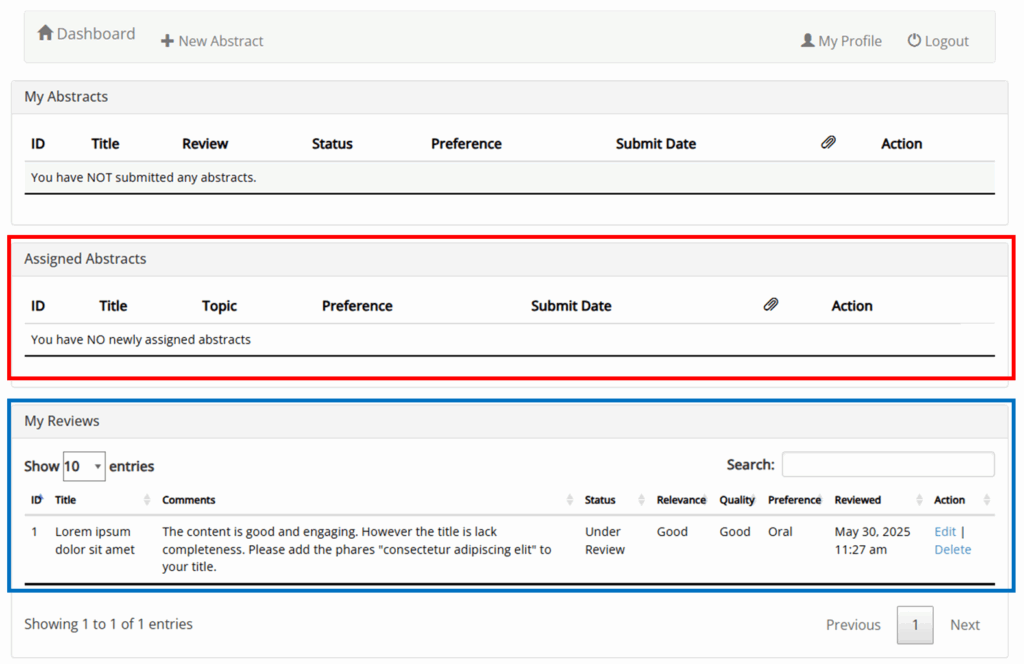
Overview
- Assignment email notification for reviewer
- Making a new review in your DASHBOARD
Assignment email notification for reviewer
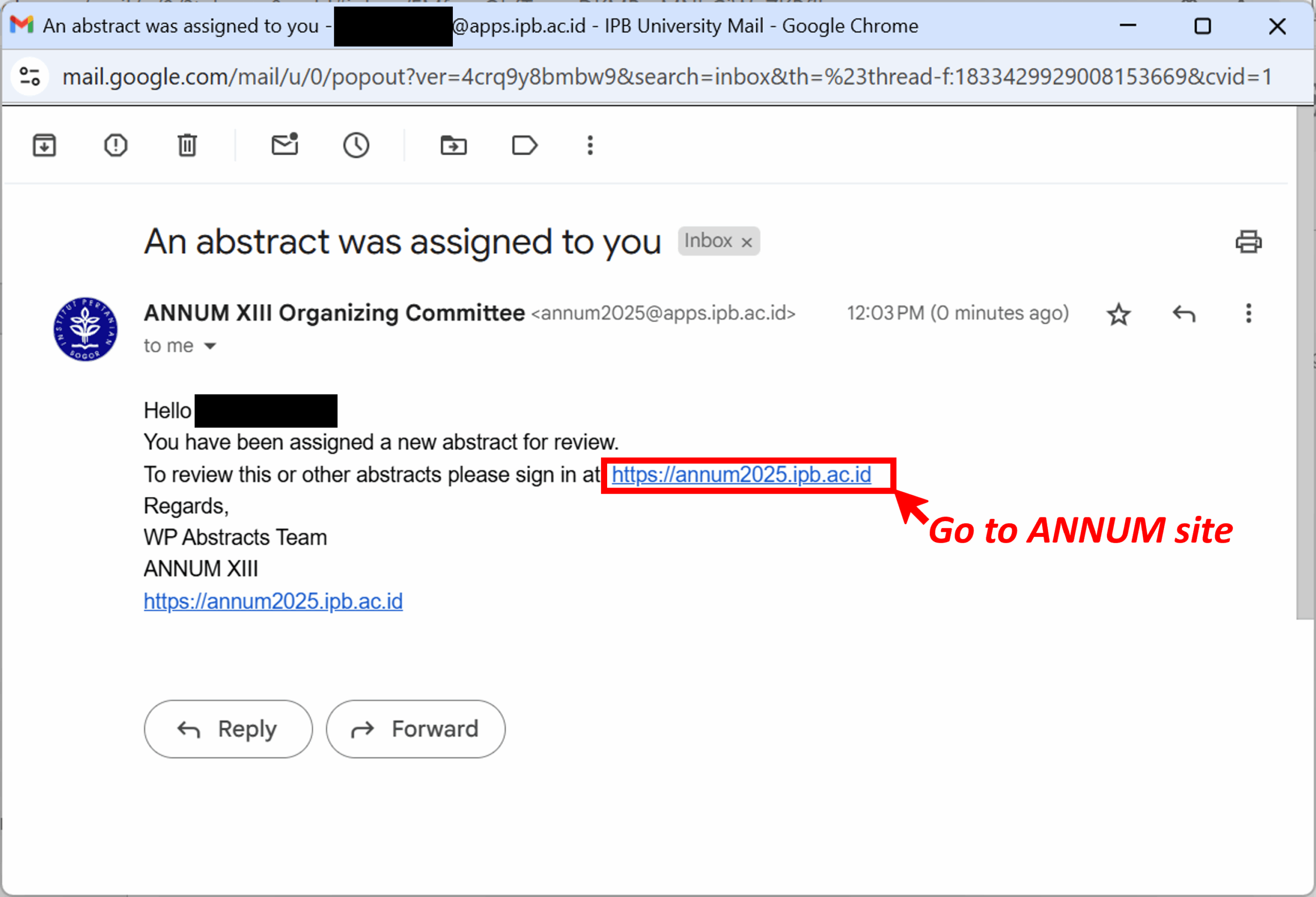
When a submission is assigned to a user with the Reviewer (Editor) role (part of the scientific committee), our system will send an email notification to that user’s address. See the notification example below. All review processes must be done in the WP Abstract DASHBOARD interface on this website. Therefore, the next step is to LOG IN to your account.
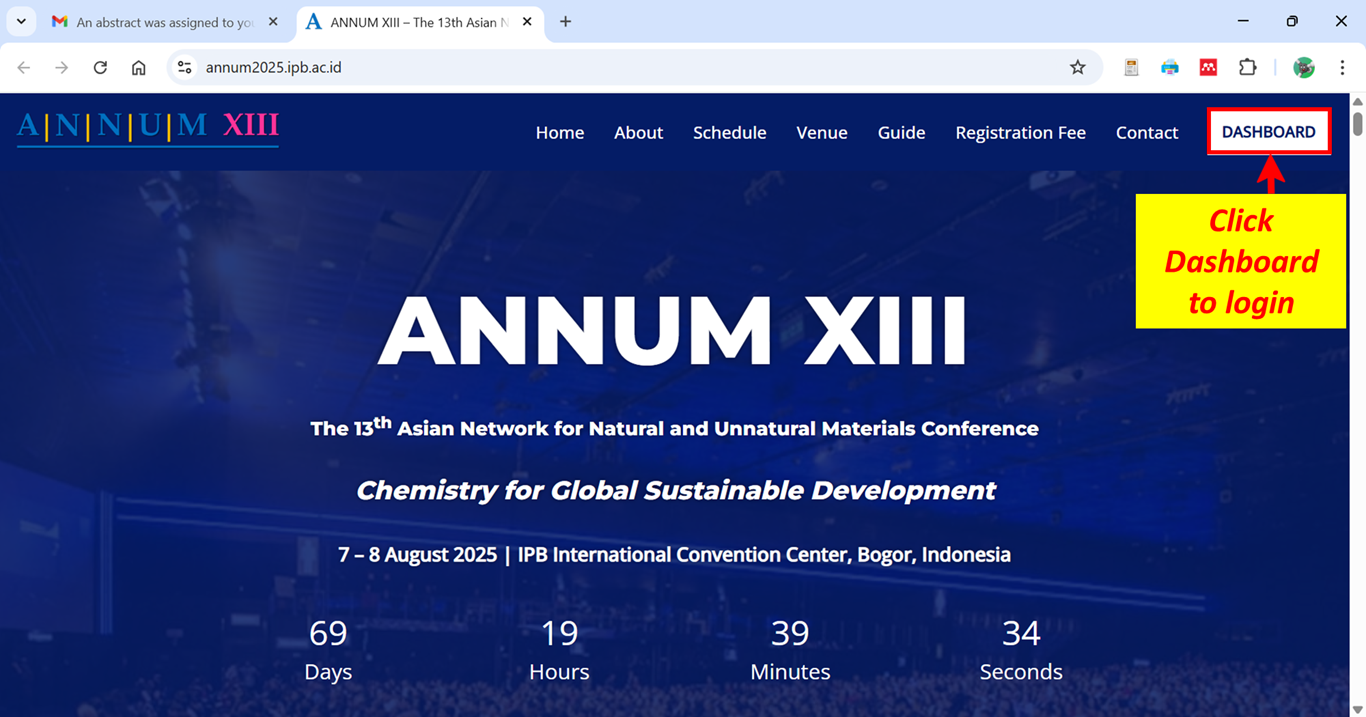
Making a new review in your dashboard
As a reviewer, your DASHBOARD will have some additional features. Submissions that you created yourself will be displayed in the top table (My Abstracts). Meanwhile, the next two tables are for submissions that you were assigned to review (Assigned Abstracts and My Reviews). Take a look at the following illustration.
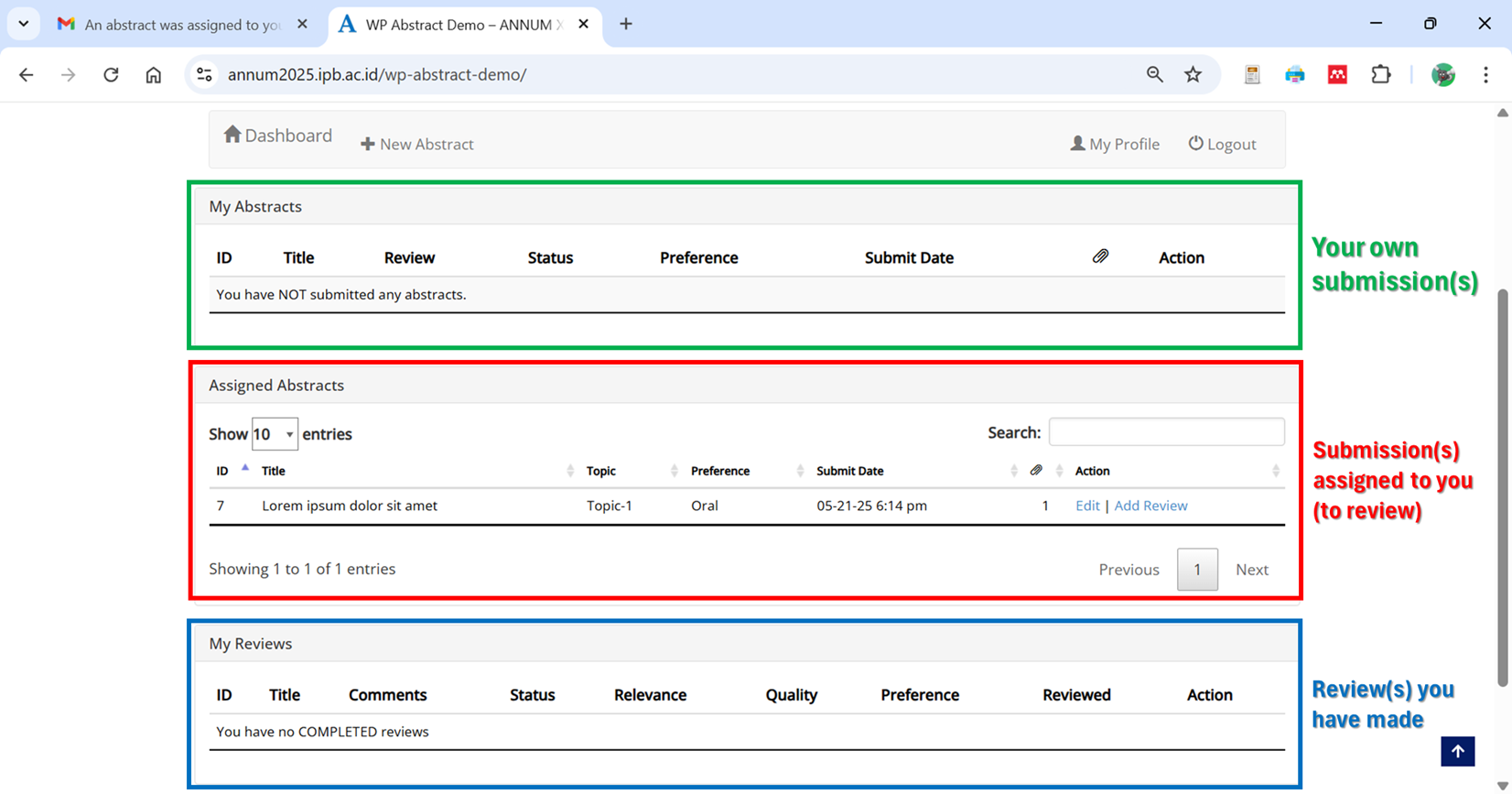
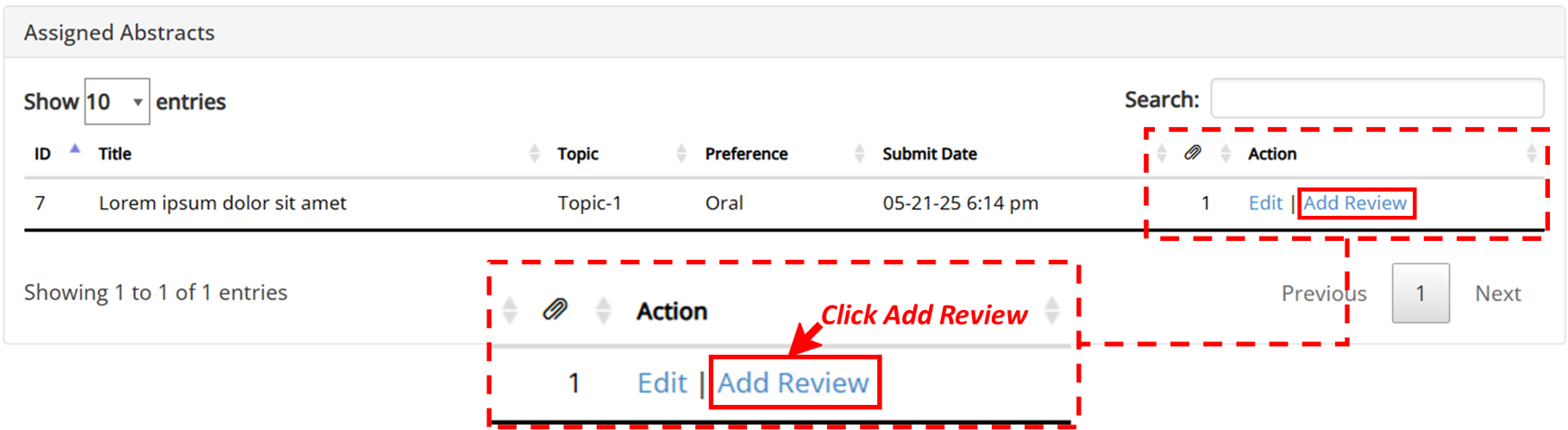
To review a submission, look at the middle table (Assigned Abstracts). Notice in the last column of this table (Action) there are two links titled Edit and Add Review. Click the Add Review link on the row of the submission you want to review. Consider the following example.
The New Review interface will open (see illustration below). The top three panels on the left contain information about the submitted abstracts. In the Abstract Information section, you can read the title and content (description) of an abstract submission. Meanwhile, keywords and illustrations (optional) of the submission can be viewed respectively in the Keywords and File Attachments (need to be downloaded) sections. In the Add Comments section, you can write a brief comment about the submission. If necessary, additional files (documents or illustrations with a size of less than 2 MB) can be added in the Review Attachments section.
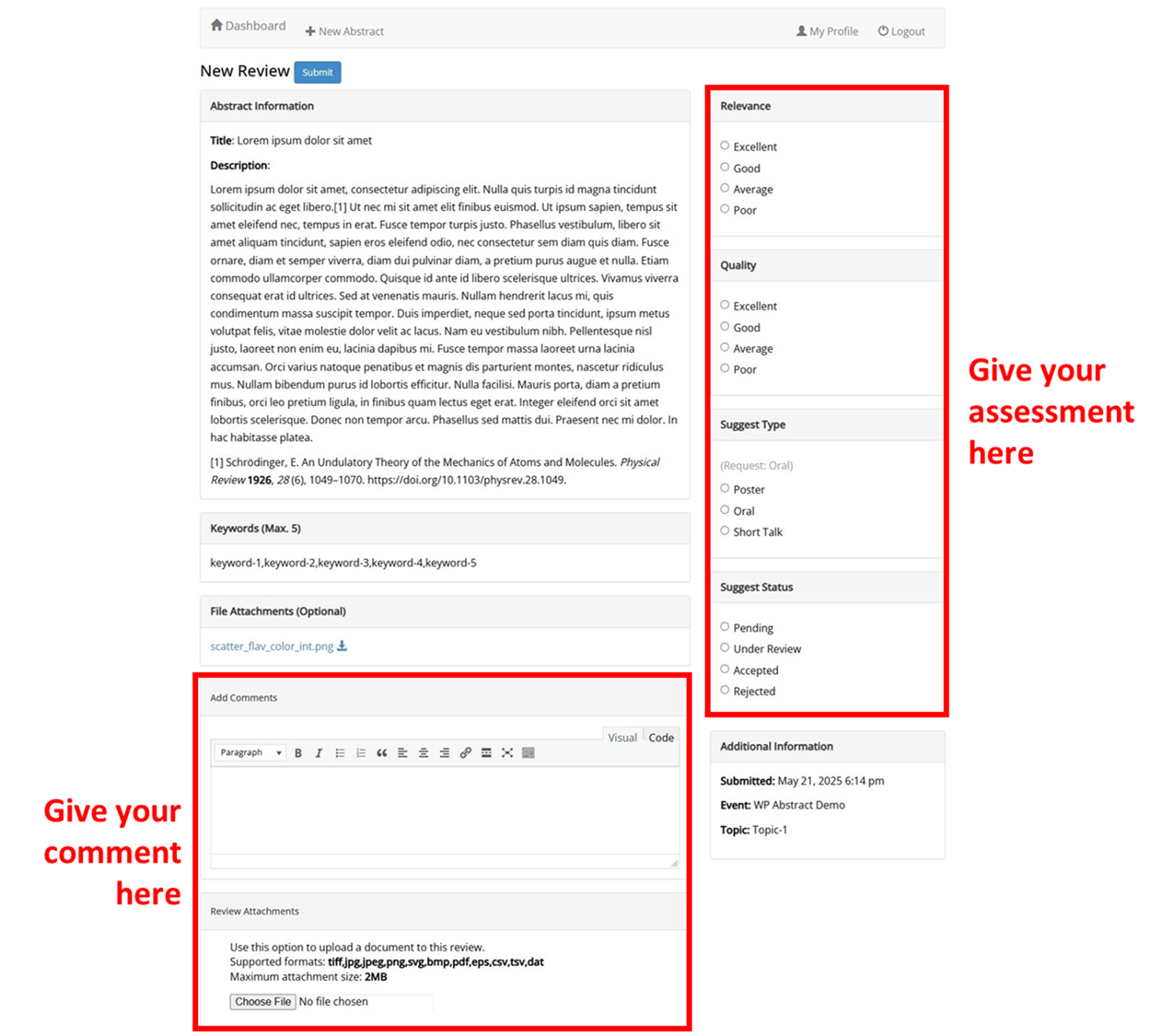
On the right side you should provide a qualitative assessment of the Relevance and Quality of the submission. In the Suggest Type section you may suggest changing the presentation format (if necessary). The status of this submission (Pending, Under Review, Accepted, or Rejected) can be suggested in the Suggest Status section. Authors can still make edits to their submission if the status is Pending or Under Review (as long as there is still time). In the bottom panel on the right, you can see Additional Information such as the Submitted date, Event name, and Topic chosen by the author. If necessary, suggestions for changing the selected topic may be included in your review comments.
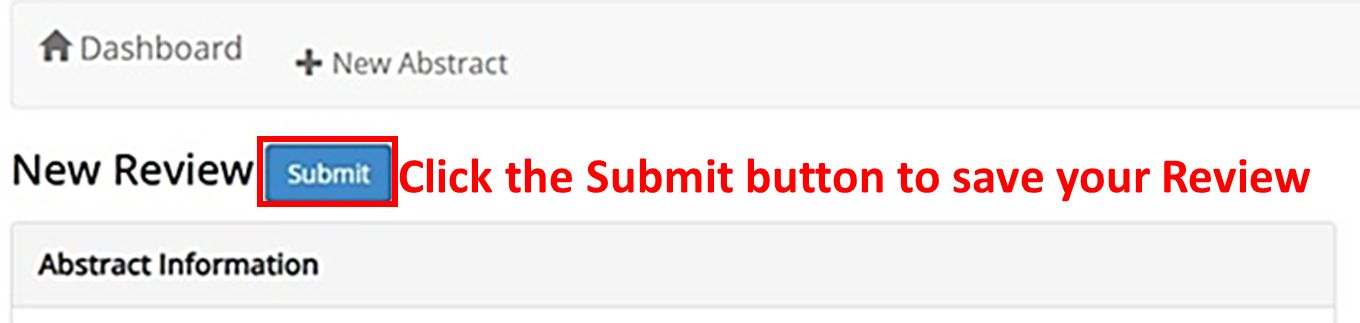
Lastly, Please save your New Review by clicking the Submit button on the top left of this interface.
Once saved, the system will send an automatic email notification to the author regarding the review you have made. You will also receive an automatic email notification when the author has made changes to their submission in response to your review. Now, back on your DASHBOARD, you will have a new entry on the table titled My Review and one less entry on your Assigned Abstract table.